Creating Backups
This guide explains the full backup process in practical detail.
It covers:
- when to use each backup type,
- what each option means,
- how size estimates are presented,
- and what to expect during backup execution.
If you only read one section before first use, read "Choosing the right backup type" and "Before you click Create Backup".
Open the backup dialog
- Go to System > Backups.
- Click Create Backup.
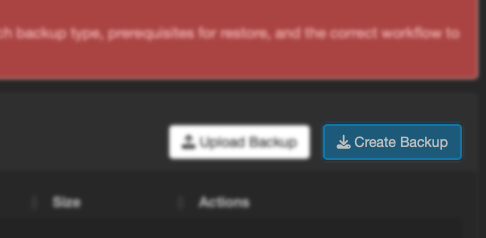
Screenshot: Create Backup button in the panel header.
The create dialog opens with backup type options and type-specific controls.
Choosing the right backup type
Config backup
Use Config backup when your goal is to preserve how Allsky is configured.
Typical use cases:
- before changing camera settings,
- before editing module pipeline files,
- before overlay rework,
- before updates/migrations,
- before troubleshooting experiments.
Images backup
Use Images backup when your goal is to preserve captured data.
Typical use cases:
- before cleanup/retention jobs,
- before moving storage,
- before rebuilding a system,
- before sharing/archiving selected nights.
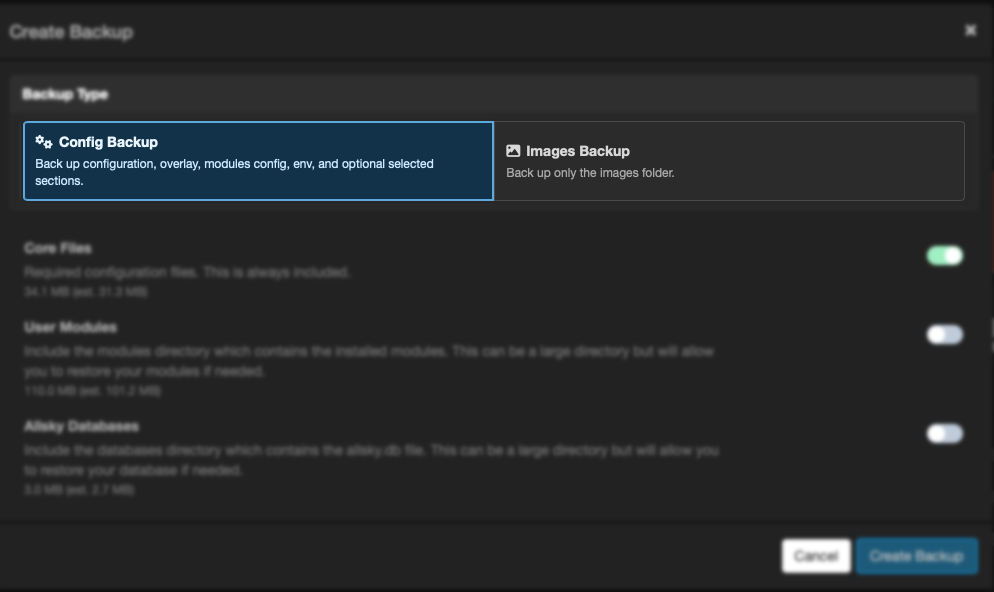
Screenshot: Backup type selector in the create dialog.
Config backup in detail
Config backup has two layers:
- Core Files (always included)
- Optional Sections (switchable)
Core Files
Core files are required and cannot be turned off.
They include key configuration areas such as:
- camera-aware settings and cc files,
- overlays,
- module configuration,
- and environment/config files required for operation.
Optional Sections
Optional sections let you include heavier or situational data.
Common examples:
- User Modules
- Allsky Databases
For each optional section, the dialog shows:
- a friendly description,
- estimated raw size,
- estimated compressed size.
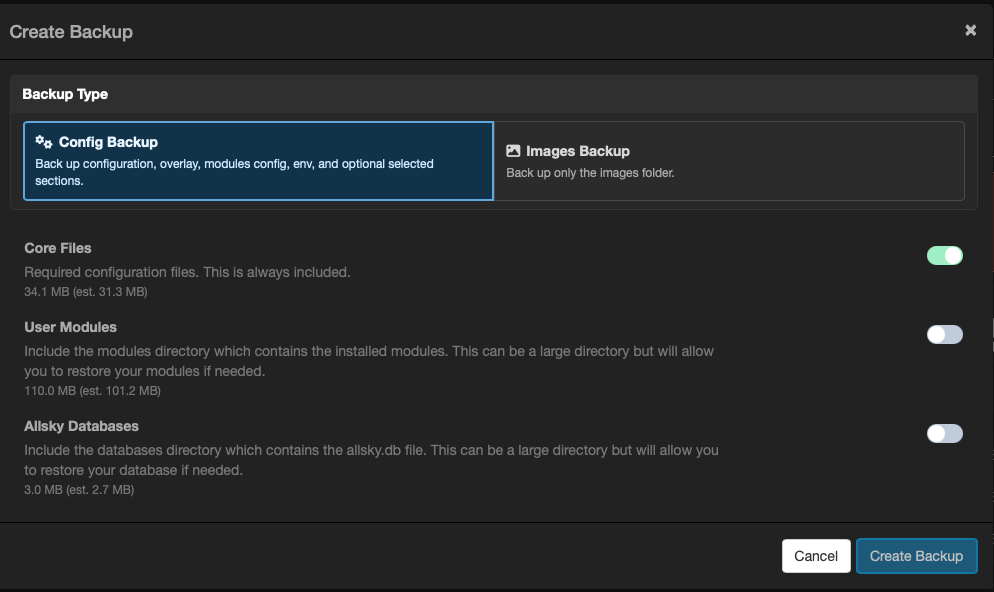
Screenshot: Optional section switches with size/estimate details.
How to decide
If you are preparing for full migration/recovery, include optional sections. If you are making quick config-only safety snapshots, keep it lean.
Service pause behaviour for database consistency
When database-related data is selected, Allsky may stop the allsky service during archive creation to avoid reading actively changing database files.
After archive creation, the service is started again.
This is normal and prevents inconsistent backups.
Images backup in detail
Images backup gives you two modes:
- All folders (default)
- Selected folders only
The folder list is derived from available image date folders.
Size and estimate summary
The dialog shows size details to help set expectations.
You will see:
- total selected raw size,
- estimated compressed size,
- per-folder values (when selecting folders individually).
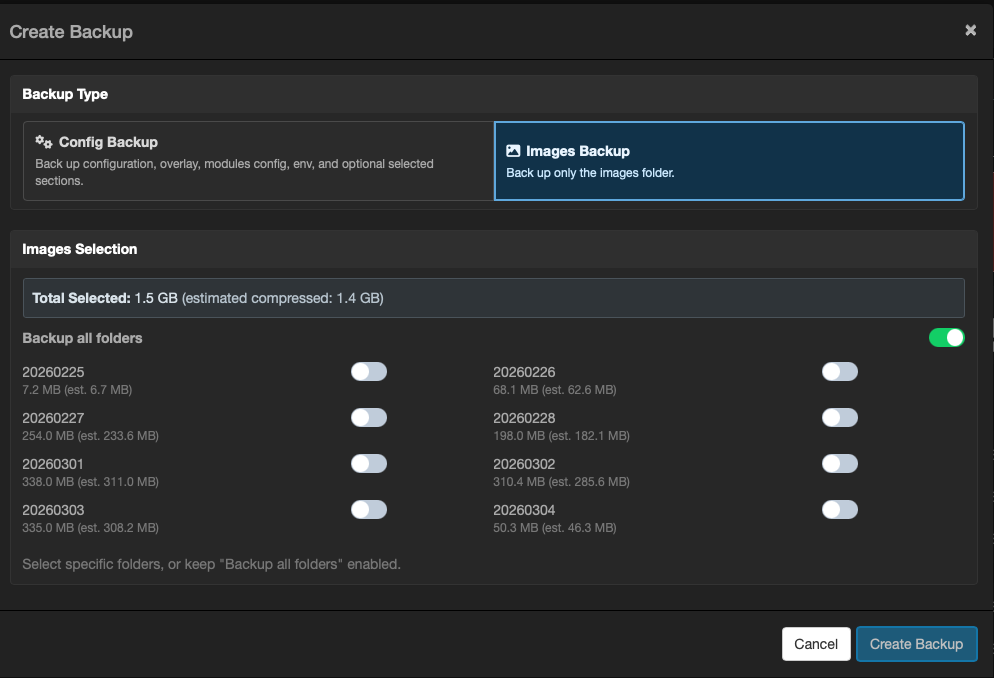
Screenshot: Images folder selection with per-folder size details.
Selection behaviour
The selector is designed to reduce mistakes:
- "All folders" starts enabled.
- selecting any specific folder switches intent to explicit folder selection.
- returning to "All folders" indicates full image set backup intent.
Before you click Create Backup
Use this quick checklist:
- You selected the correct backup type.
- Optional sections match your actual recovery goal.
- Folder selections (for images) match the date range you need.
- Estimated size is acceptable for storage and transfer.
- You understand this may take time (especially large image sets).
Backup execution and progress modal
When you click Create Backup, the create dialog closes and a progress modal appears.
The modal shows:
- staged progress steps,
- percentage progress,
- status text,
- and warning/error information if needed.
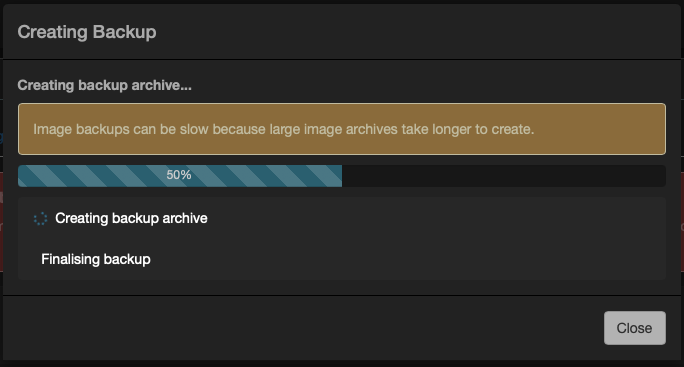
Screenshot: Backup progress modal with stage list and progress bar.
Image backup timing
Large images backups can be slow. Runtime depends on data volume, storage speed, and CPU load during compression.
After backup completion
On success:
- the progress modal completes,
- the backup table refreshes,
- and your new backup appears in the appropriate group.
Recommended next step:
- click Info on the new backup row and verify expected contents.
Uploading existing backup archives
If you already have a backup file:
- Click Upload Backup.
- Choose your
.tar.gzarchive. - Wait for validation.
The system validates archive structure and metadata before accepting it.
Operational best practices
Recommended baseline
- Keep at least one recent config backup and one known-good older one.
- Keep image backups for key nights before cleanup.
- Download critical backups off-device.
- Name your maintenance windows and create backups first.
Common mistakes to avoid
- Creating only image backups and assuming config is recoverable.
- Forgetting optional sections before migration.
- Not verifying backup contents after creation.
- Keeping all backups on the same SD card/device only.