Backup and Restore Overview
The Backup and Restore page exists for one simple reason: sooner or later, every system needs recovery.
That might be because:
- you are about to make major changes and want a clean rollback point,
- you are moving Allsky to a new SD card or a new Raspberry Pi,
- a setting change has caused unexpected behaviour,
- module or overlay files have been edited and you want a safe fallback,
- or you just want regular operational hygiene.
In short, this page gives you a controlled way to protect and recover your Allsky environment without manual file wrangling.
Please read this guide before using backup/restore
Backup and restore operations can overwrite live files. If used incorrectly, they can replace working settings with older data. Read this section and the backup/restore guides in full before using the tools in production.
Where this is in the WebUI
Open:
- System page
- Backups tab
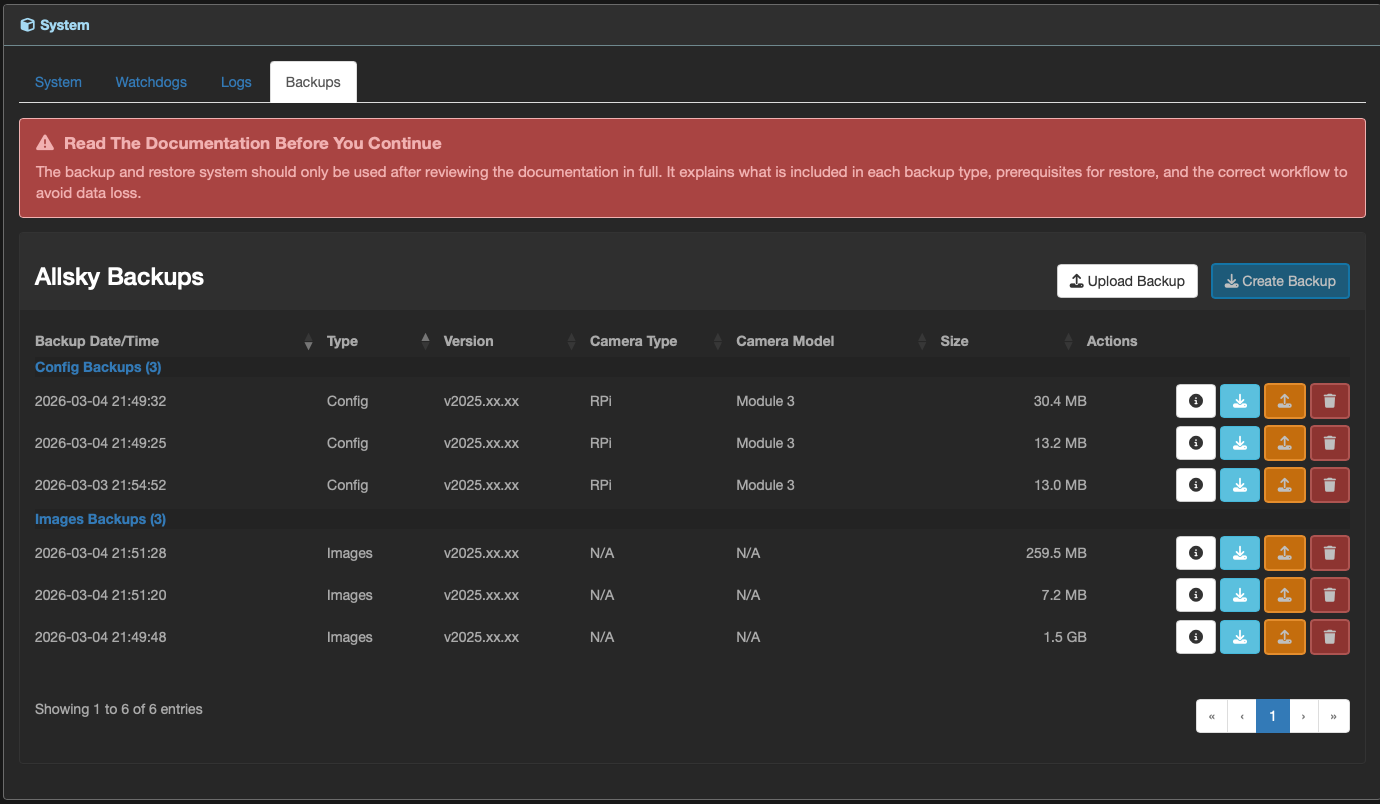
Screenshot: The System page with the Backups tab selected.
What the page does
From this tab, you can:
- create new backups,
- upload existing backup archives,
- inspect backup contents,
- download backup archives,
- restore backups,
- and delete old backups.
The table is grouped by backup type and gives you a quick operational view of what you have available.
Backup types
There are two backup types and they solve different problems.
1. Config backups
A config backup is for restoring how your Allsky system is configured.
It includes core configuration areas and can optionally include extra sections such as user modules and database-related files.
Use this when you need to preserve:
- system behaviour,
- module settings,
- overlay data,
- camera-related configuration,
- and environment/config files.
2. Images backups
An images backup is for restoring captured image data.
It can include all image folders or selected date folders.
Use this when you need to preserve:
- historical captures,
- selected observation dates,
- or specific image sets before cleanup/maintenance.
Understanding the backups table
The table is your operational inventory.
Common columns:
- Backup Date/Time: when the archive was created.
- Type: Config or Images.
- Version: Allsky version from when backup was created.
- Camera Type / Camera Model: relevant for config restores and compatibility checks.
- Size: archive size on disk.
- Actions: info/download/restore/delete.
Note
Image backups show camera fields as N/A, because they are image archives rather than camera configuration archives.
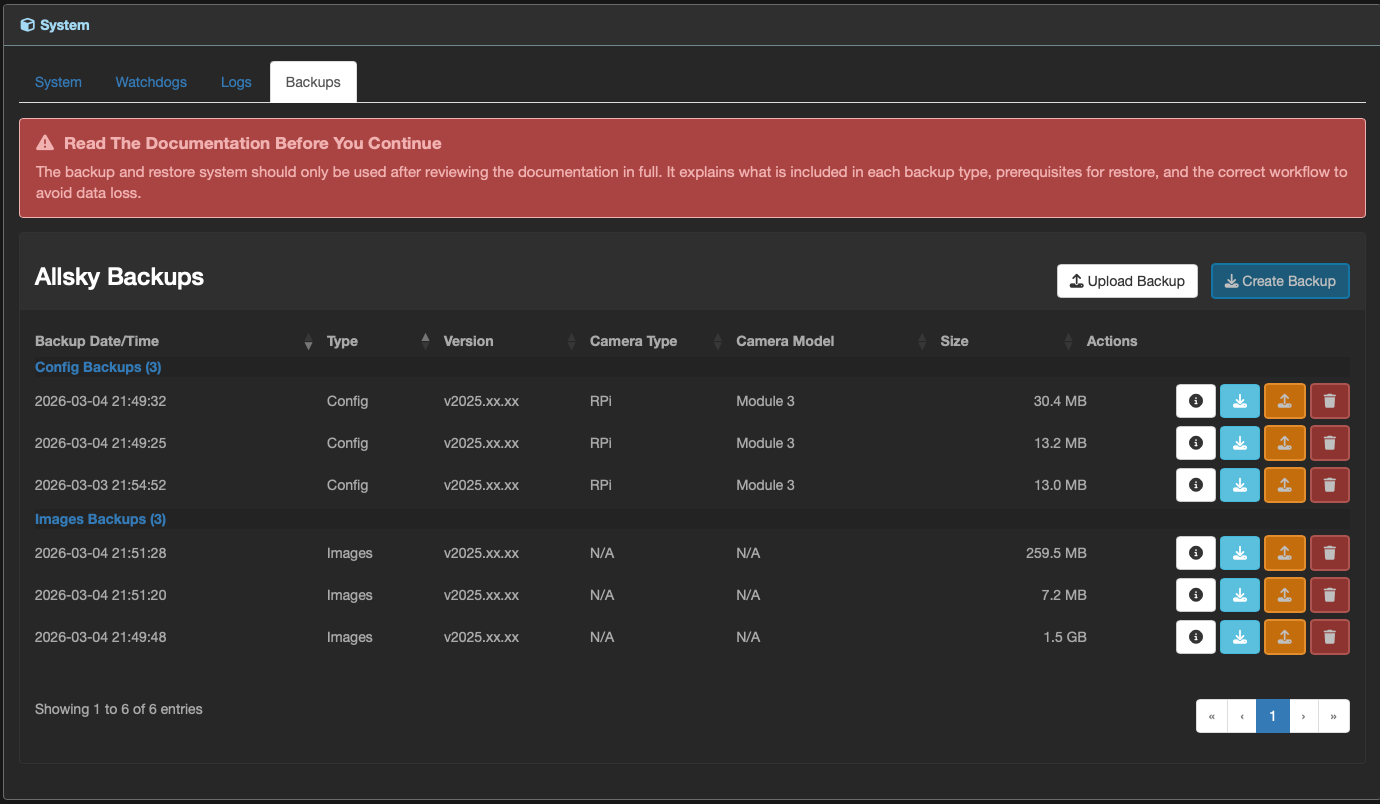
Screenshot: Backups table grouped by backup type with action icons.
Row actions: what each one is for
Each backup row has icon actions:
- Info: opens a detailed summary of what is inside that backup.
- Download: exports the archive from backup storage.
- Restore: opens restore checks and restore options.
- Delete: permanently removes that backup archive from storage.
Use Info first when in doubt. It is the fastest way to confirm whether a backup has what you need before you restore it.
How metadata is used
To keep the UI responsive, backup metadata is stored in two places:
- inside the backup archive (
metadata.json), and - in a sidecar metadata file (
<backup_name>.json).
The sidecar is used first for speed. If it is missing, metadata is read from the archive and then cached for future access.
That design keeps large-backup browsing practical, especially for images backups.
Safety model during restore
Restore is intentionally not a blind one-click process.
Before restore, the system performs checks and displays what will happen.
Depending on backup type and selection mode, checks can include:
- camera compatibility validation,
- required module validation,
- selected section/folder/file validation,
- and permission/ownership reapplication logic.
You then confirm restore explicitly.
What happens after restore
After a restore:
- a progress modal shows stage updates,
- a completion modal summarises exactly what was restored,
- and a restore log is written into
config/logs.
This gives you both immediate confirmation and an audit trail.
Suggested workflow for reliability
If you are using Allsky in regular operation, this pattern works well:
- Create a config backup before significant changes.
- Create periodic image backups for important nights/dates.
- Keep more than one restore point.
- Download critical backups off-device.
- Use info + restore checks before every restore.