Website
The Allsky Website allows you to display your most recent captured image on a Website on your Pi, on another machine, or on both. Saved timelapse videos, keograms, and startrails can also be viewed. Constellations and other objects can be overlayed on the image, and aurora activity can be listed.
For a local Allsky Website you only need to configure and enable it as described below; no installation is needed.
Before you configure a remote Website you must first install it - see the Allsky Website Installation Instructions . Then return to this page.
Steps to configure an Allsky Website are below.
Configure Website Settings
- In the WebUI, click on the Editor link.
-
In the drop-down at the bottom of the page, select one of the following, depending on which Website you want to configure:
configuration.json (local Allsky Website)orremote_configuration.json (remote Allsky Website)(only if you installed a remote Website)- You will then see something like this:
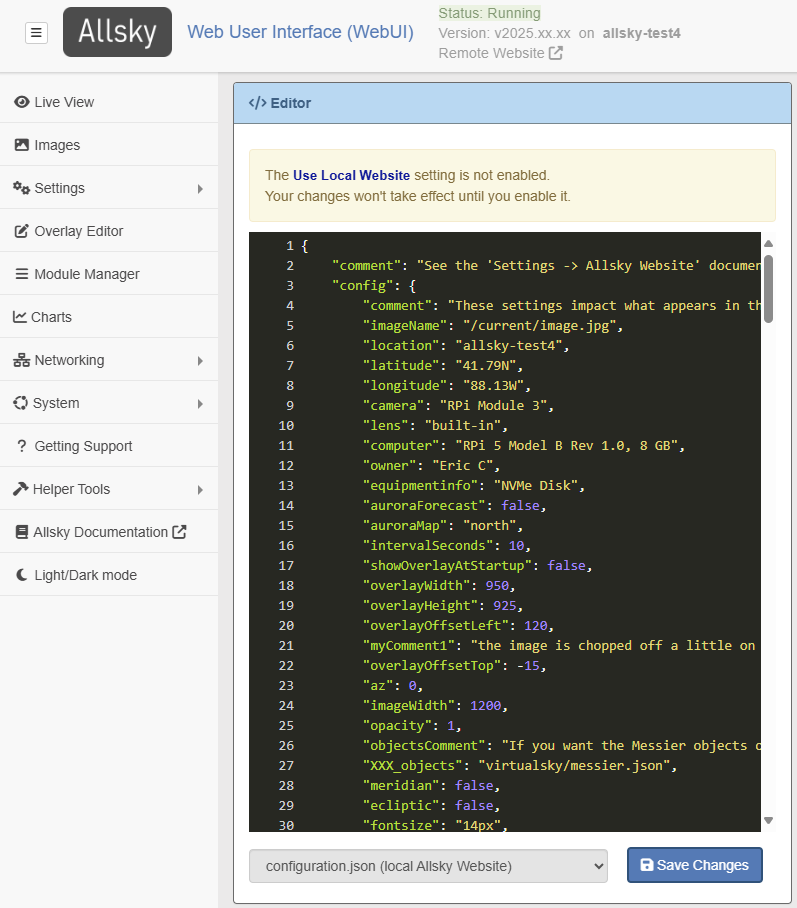
Example Remote Configuration Settings
Using The Editor
Using the Editor
The WebUI's Editor page allows editing Allsky configuration files. Items in the editor window are color-coded depending on what they are.
Tip
The Editor accepts CTRL-Z to undo actions.
A typical view of a JSON file being edited is below, followed by a description of the color scheme.
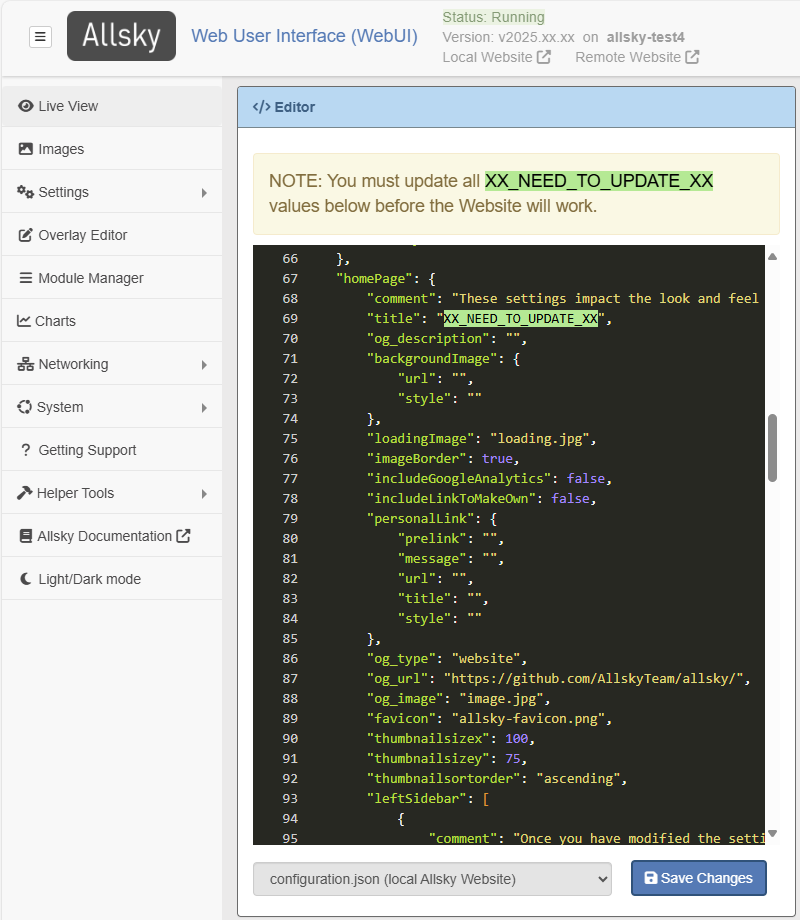
A typical view of a JSON file being edited
Color scheme
Setting names look different depending on the file type:
-
In .json files they look likeThis.
Settings names MUST be enclosed in double quotes, but quotes around them are omitted in the Allsky documentation for readability.
-
Colors for setting values vary based on value's type:
- Text (anything surrounded by quotes): "sample text". Note that a number surrounded by quotes like "41.79" is treated as text and is confusing to people looking at the value. If a value is supposed to be a number, don't add quotes.
- Numbers (when not quoted): 41.79, -88.1.
- Booleans (when not quoted): true, false.
-
Special characters: { } : , =
- JSON brackets: [ ]
Problems in the file
If there's a formatting error in the file a small red "x" will appear to the left of a the line number. Hover your cursor over it to see the error.
In the example below, a comma is missing from the end of line 37. The message is somewhat cryptic but is telling you it was expecting to see one of the listed characters at the end of the line.
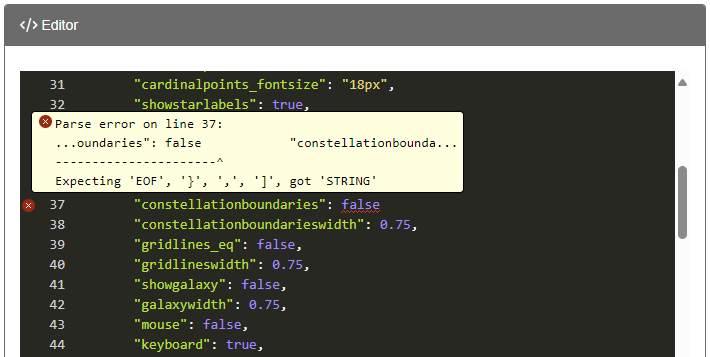
Error in Configuration File
You will not be able to save the file until all errors are resolved.
If the page doesn't indicate there's an error but you get an error when you try to view the page, check if the colors on the page are different than what was described above. The most common errors are below:
-
In JSON files:
-
Missing commas are needed after each value except the last one in a sub-section.
{
"setting1" : "value 1" < missing comma
"setting2" : "value 2" < last entry, no comma needed
} -
Missing quotes - setting names and string values must be surrounded by double quotes.
setting1:"value 1" < missing quotes around name
-
Missing colons - one must separate each setting name from its value.
There can be 0 or more spaces before and/or after the colon.
setting1 "value 1" < missing colon
-
-
Ignore any message about the Website not being enabled - you will do that in the next step.
-
The settings in both files are identical although their values may differ. The files are split into two sections:
-
"config" - settings for the webpage image and constellation overlay.
-
"homePage" - settings to change the look and feel of the Website's home page including the icons on the left side, the information popout on the right side, an optional background image, etc.
See the two sections at the bottom of this page for information on each section.
-
Each setting has a name and value, separated by a colon (:). Setting names in the file look like this and should generally NOT be changed unless, for example, you are adding a new icon on the left side of the screen.
Setting names MUST always be enclosed in double quotes.
-
You should change setting values as desired - they have different colors depending on their types, as described here.
IMPORTANT
Make sure all XX_NEED_TO_UPDATE_XX values are updated.
-
Some settings like the latitude are also in the WebUI and should already be filled in. Those settings should only be changed in the WebUI, not in the file itself. The WebUI will ensure any changes are propogated to the appropriate file(s).
-
Tip
Tip: You can add comments to yourself by adding a new setting name and value, e.g.,
"myComment1" : "Need to check the next setting",
Be sure all setting names are unique.
Enable The Website
- On the WebUI's Allsky Settings page display the Website and Remote Server Settings section.
- Enable the Website in either the Local Website Settings or Remote Website Settings subsection, depending on which Website you are configuring.
- Change the other settings in that subsection as needed. Remote Websites need to know the server name, login, etc.
The subsections below describe the settings in the json files, their default values, and a description.
Config Settings
Legend
- Values for setting names with "(map)" after them are sent to the Allsky Map server if your camera is on the map.
- Setting names with "(vs)" after them impact the virtual sky overlay, i.e., the constellation overlay. See the complete list of virtual-sky based options.
- Values marked with are automatically set during installation based on your WebUI settings and your Pi model, but can be overridden.
Updating Settings
It's important to update your settings in the WebUI before configuring the Allsky Website so you only have to update them once.
| Setting | Default Value | Description |
|---|---|---|
comment |
This line describes what this section is for and can be deleted if desired. | |
imageName |
/current/tmp/image.jpg (local)image.jpg (remote) |
The image uploaded from your Allsky camera. Normally should not be changed. |
location |
(auto) | The location of your camera. |
latitude |
(auto) | Latitude of the camera as a decimal number (negative is Southern hemisphere) or as an unsigned number with N or S, e.g. "41.79N" or 41.79. |
longitude |
(auto) | Longitude of the camera as a decimal number (negative is west of the prime meridian) or as an unsigned number with E or W, e.g. "101.9W" or -101.9. |
camera |
(auto) | The camera type and model. Should not be changed – use the equipmentinfo setting instead. |
lens |
(auto) | Short description of the camera's lens, for example brand, focal length, etc. |
computer |
(auto) | The Raspberry Pi model. Should not be changed – use the equipmentinfo setting instead. |
equipmentinfo |
(auto) | Any optional information on your equipment. |
owner |
(auto) | The camera owner. |
auroraForecast |
false |
Displays the 3-day aurora forecast in the top right corner when set to true. |
auroraMap |
(auto) | Aurora oval map for the north or south hemisphere. |
intervalSeconds |
5 |
Number of seconds between checks for a new image. You may set this to roughly half the exposure cycle to reduce browser CPU usage. |
showOverlayAtStartup |
false |
Set to true to display the constellation overlay when the page loads. |
overlayWidth |
875 |
Width of the overlay in pixels. |
overlayHeight |
875 |
Height of the overlay in pixels. |
overlayOffsetLeft |
0 |
Positive values move the overlay right; negative values move it left. |
overlayOffsetTop |
0 |
Positive values move the overlay down; negative values move it up. |
az |
0 |
Azimuth rotation of the overlay.0 = north up, 90 = north right, etc. |
imageWidth |
900 |
Width of the captured image in pixels. Height is calculated automatically to preserve aspect ratio. |
opacity |
0.5 |
Opacity of the overlay from 0.0 (invisible) to 1.0 (full brightness). |
objectsComment |
Informational comment line; may be deleted if not needed. | |
XXX_objects |
virtualsky/messier.json |
One or more semicolon-separated object files to display. To enable, remove the leading XXX_. |
meridian |
false |
Display the meridian line? |
ecliptic |
false |
Display the ecliptic line? |
fontsize |
14px |
Font size for constellation and star names. |
cardinalpoints |
true |
Display the cardinal points (N, S, E, W)? |
cardinalpoints_fontsize |
18px |
Size of cardinal point labels. Increase if difficult to read or adjust colour via colours. |
showstarlabels |
true |
Display star names? |
projection |
fisheye |
Leave at default for fisheye lenses (most Allsky cameras). |
constellations |
true |
Show constellation lines? |
constellationwidth |
0.75 |
Width of constellation lines. |
constellationlabels |
false |
Show constellation names? |
constellationboundaries |
false |
Show constellation boundaries? |
constellationboundarieswidth |
0.75 |
Width of constellation boundary lines. |
gridlines_eq |
true |
Show RA/Dec grid lines? |
gridlineswidth |
0.75 |
Width of RA/Dec grid lines. |
showgalaxy |
true |
Show galaxies? |
galaxywidth |
0.75 |
Width of galaxy outline lines. |
mouse |
false |
Allow mouse interaction to rotate the overlay. |
keyboard |
true |
Enable keyboard controls. Press ? while hovering over the image for help. |
showdate |
false |
Show date and time in the overlay? Usually unnecessary if already embedded in the image. |
showposition |
false |
Show latitude/longitude in the overlay. |
sky_gradient |
false |
Lighten the sky toward the horizon? |
gradient |
false |
Reduce star brightness near the horizon? |
transparent |
true |
Make the sky background transparent? |
lang |
en |
Language for object names. See ~/allsky/html/allsky/virtualsky/lang. |
colours |
Override default overlay colours in normal and negative modes.rgba() uses red, green, blue, and opacity (0.0–1.0). |
|
live |
true |
Update the display in real time (rarely changed). |
id |
Do not change. | |
AllskyVersion |
Do not change. |
Homepage Settings
| Setting | Default Value | Description |
|---|---|---|
comment |
This line describes what this section is for and can be deleted if desired. | |
title |
XX_NEED_TO_UPDATE_XX |
Text displayed next to the Allsky logo on the upper left. Can be anything you want, but keep it short because it is also displayed on the tab in your browser. |
og_description |
XX_NEED_TO_UPDATE_XX |
The description given to your Website if you drag/drop its icon to things like social media sites. Often the same as title. |
backgroundImage |
Optional background image for the Website home page. Sub-settings: - url – location of the image (URL or file name)- style – optional CSS style (e.g. border: 1px solid red;) |
|
loadingImage |
loading.jpg |
Location of the “Loading …” image shown after starting the Website and before the first image appears. Can be a URL or a file name. Note: If this is a file on your Pi or remote server, put it in the Website’s myFiles directory (restored during upgrades). |
imageBorder |
false |
Add a border to the image? The border helps distinguish the image from the black background. |
includeGoogleAnalytics |
false |
Include the analyticsTracking.js file?If you don’t know what this is, leave it false.If you change the file it will be copied to newer releases during upgrades. |
includeLinkToMakeOwn |
true |
Display the “Build your own” link at the bottom right of the home page? |
personalLink |
Adds an optional link at the top of the home page. Example: Click here to go to Google. Sub-settings: - prelink – text before the link (e.g. Click)- message – link text (e.g. here to go to Google)- url – destination URL (e.g. https://google.com)- title – hover text (e.g. this is a title)- style – optional CSS for prelink text (e.g. color: red;) |
|
og_type |
website |
Used by social media and other sites when dragging/dropping your Website icon. Rarely changed. |
og_url |
Link to your Allsky Website page (used by social media and other sites). | |
og_image |
image.jpg |
Link to an image used as the thumbnail when dragging/dropping your Website icon to social media and other sites. |
favicon |
allsky-favicon.png |
Location of the browser “favorite icon”. Note: If this is a file on your Pi or remote server, put it in the Website’s myFiles directory (restored during upgrades). |
thumbnailsizex |
100 |
Horizontal size of keogram, startrails, and timelapse thumbnails. |
thumbnailsizey |
75 |
Vertical size of keogram, startrails, and timelapse thumbnails. |
thumbnailsortorder |
ascending |
Sort order of keogram, startrails, and timelapse thumbnails.ascending = newest to oldestdescending = oldest to newest |
leftSidebar |
Settings that modify the left sidebar icons. Each icon supports: - display – true to show, false to hide (constellation overlay icon defaults to false)- url – page to open (directory name or full URL)- title – hover text- icon – Font Awesome class list (not all icons work)- other – text to add in place of a url (often used to trigger actions/popups)- style – optional CSS (e.g. color: red; turns the icon red)You can add, update, reorder, and delete icons. |
|
leftSidebarStyle |
CSS for the left sidebar itself (not the icons). Example: background-color: yellow; |
|
popoutIcons |
Settings that control the popout on the right side. Each entry supports: - display – true to show, false to hide- label – name shown for the entry- icon – same as leftSidebar icon setting- variable – a setting name from the config section whose value is displayed (e.g. owner shows the configured owner)- value – explicit value instead of a variable (text or URL)- style – optional CSS (e.g. color: red; turns the text red)You can add, update, reorder, and delete entries. Warning: The Allsky Settings popout entry’s display should be changed via the WebUI Display Settings, not on the Editor page. |
|
ConfigVersion |
Do not change. |