Timelapse
The Timelapse helper tool aids you in determining the best settings to use when creating timelapse videos.
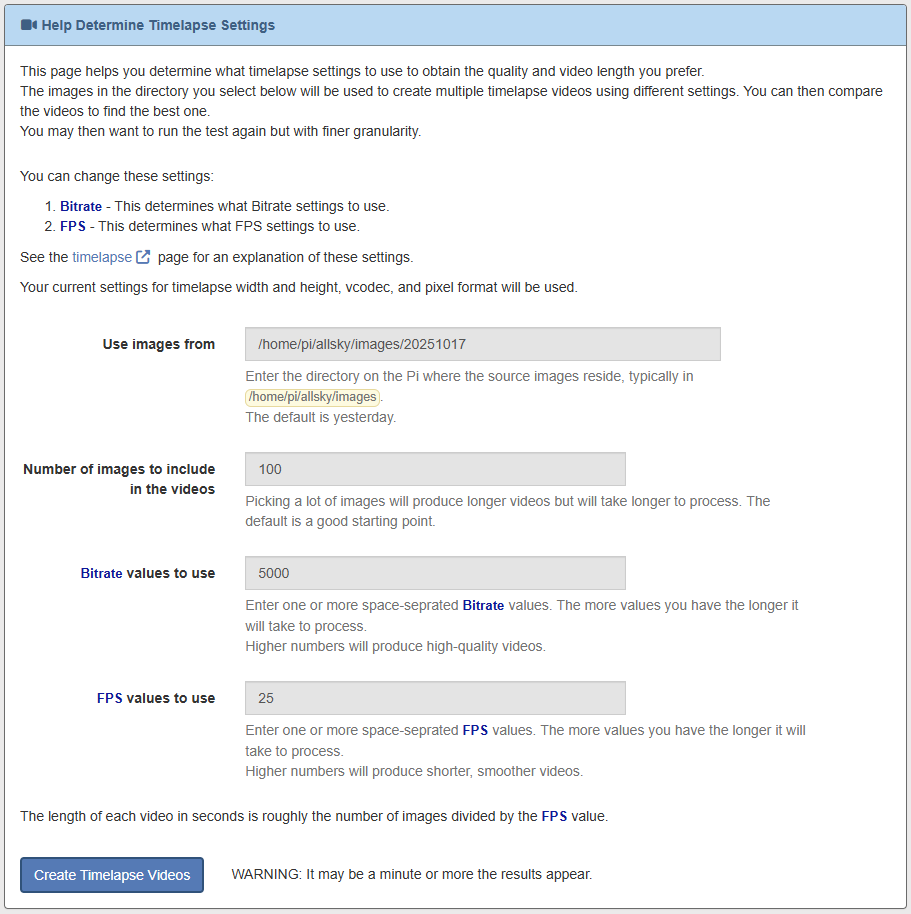
Typical Timelapse Helper Tool page
The following information is needed:
-
Use images from
This determines where the images are that will be used to create the timelapses. By default yesterday's images are used.
-
Number of images to include in the videos
This determines how many images to use. The more images you include the longer the video, but the longer it'll take to create each timelapse. The default number is a good place to start.
-
Bitrate values to use
This determines the quality of a timelapse. Higher bitrates include more information in each frame, but also make the video larger.
Enter a space-separated list of bitrates.
-
FPS values to use
This determines how many frames per second are displayed, and hence how long the video is. Larger numbers produce smoother, but larger videos.
Enter a space-separated list of bitrates.
Info
Note that the number of videos created is the number of bitrates times the number of FPS values, so if you have 3 bitrates and 5 FPS then 15 videos will be created, which will take a LONG time.
We recommend initially leaving the FPS values to the default, which is your current FPS setting, and using 2 or 3 bitrates. Once you have the quality you desire, use that as the only bitrate and use 2 or 3 FPS values.
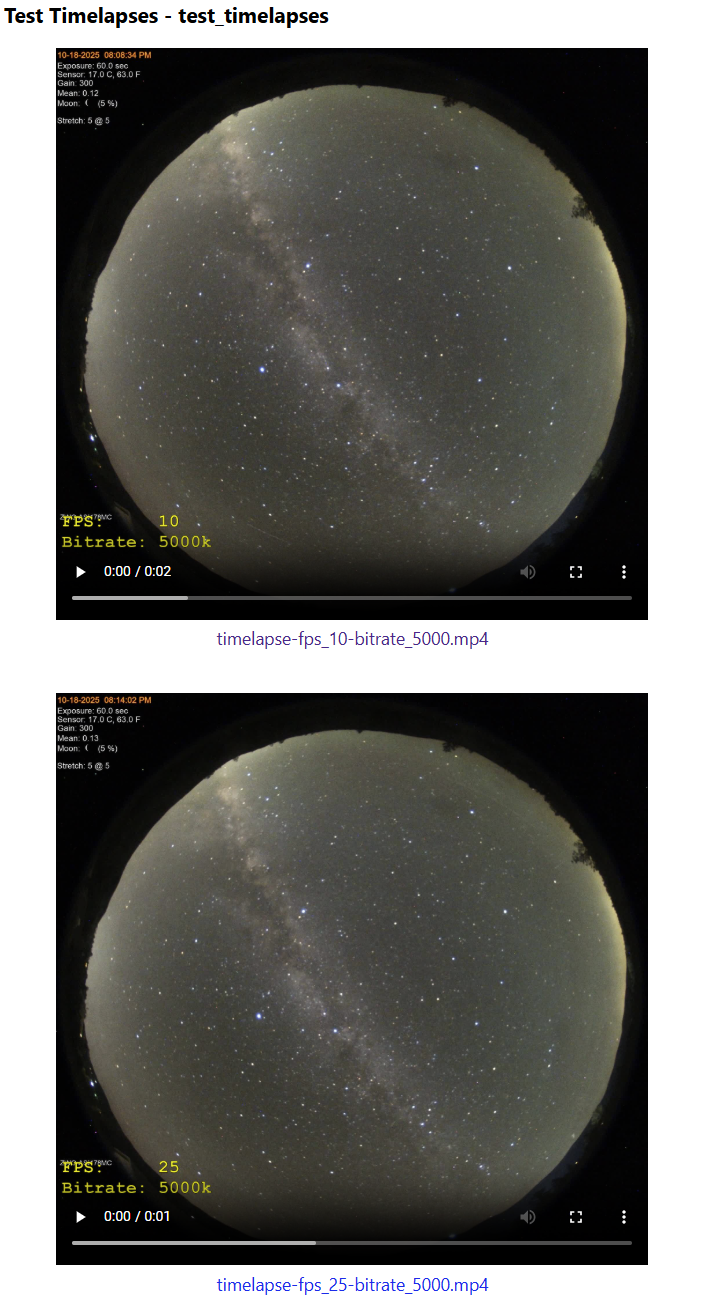
Typical Timelapse Helper Tool output